
 UFTI
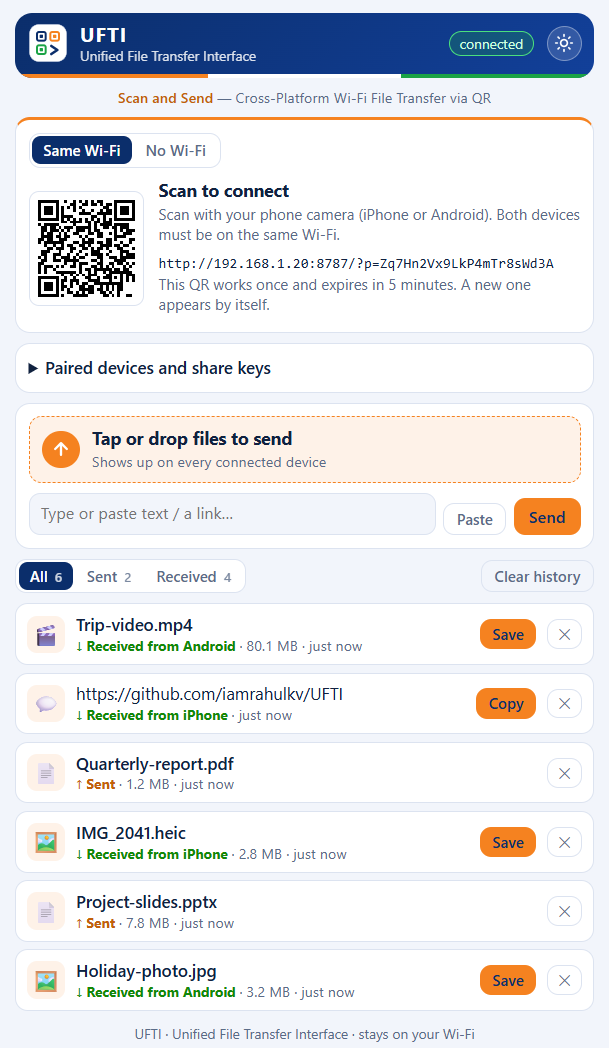
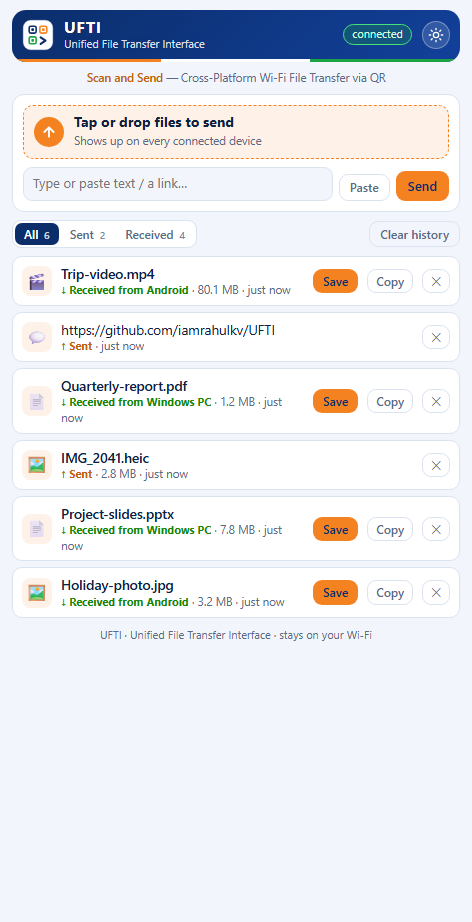
Mac and iPhone users have AirDrop. Windows and iPhone users email photos to themselves, upload them to a cloud drive, hunt for a cable, or send them through a chat app that shrinks them.
Apple does not let third-party apps send files to Windows over Bluetooth, so nothing can copy AirDrop exactly. UFTI takes a different route. It uses the one thing every PC and phone already share: a network.
From install to first transfer in about a minute
Install on your PC
Download the Windows installer from the latest release and run it. Allow network access when Windows asks.
Open UFTI
The window shows a QR code. Both devices should be on the same Wi-Fi.
Scan with your phone
Use the Camera app (iPhone) or Google Lens (Android) and open the link. UFTI loads in the phone's browser.
Send and receive
Tap the send area, pick files, or paste text. Items appear on both screens at once. Use Save or Copy on what you receive.
You scan once. The phone remembers the pairing until you remove it. If Windows SmartScreen warns you on first run, choose More info, then Run anyway (the installer is not code-signed yet).
Watch the step-by-step tutorial
Install UFTI on Windows, put it on an iPhone, connect the devices and send files between iPhone and Android, with a short review at the end. Watch on YouTube.
One protocol, three apps, every pairing
Any UFTI app can show the QR code and any other can scan it, in both directions. The phone apps can also host, so you can send phone to phone with no PC at all.
Windows
The desktop app with a tray icon, hotspot and firewall controls. Download the installer.
Android
Hosts UFTI, scans other UFTI QR codes in the app, saves to Downloads, copies to the clipboard and keeps running in the background. Download the APK and read the guide.
iPhone
Hosts UFTI and scans other UFTI QR codes inside the app, with no browser. Installs with a free Apple ID. Install guide.
No app on the phone? The browser works with everything: scan the QR code with the camera and open the link.
It can make its own network
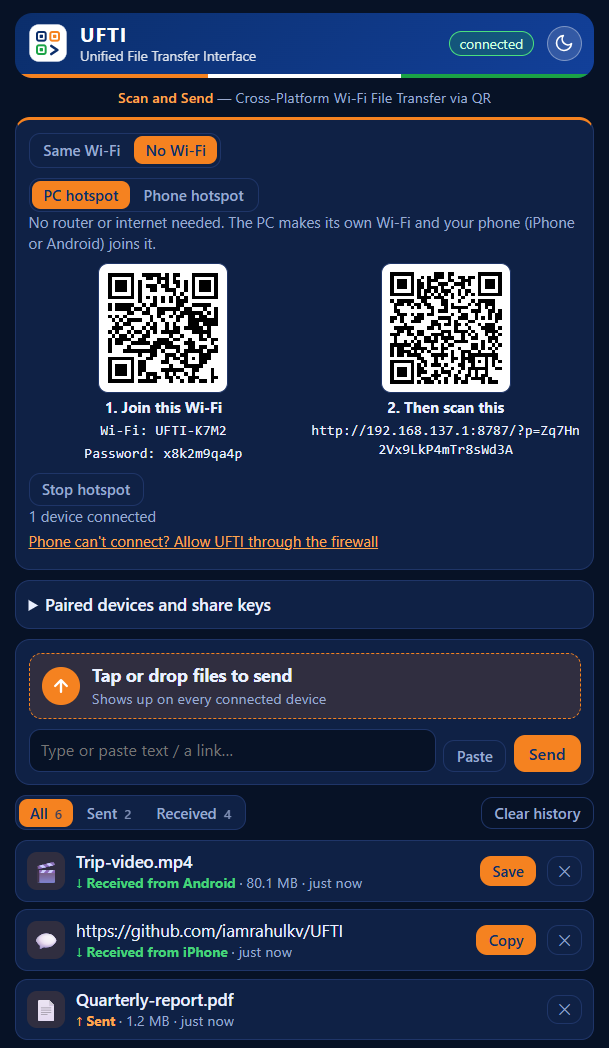
AirDrop works in a train station or a hotel with bad internet. So does UFTI. Switch the Connect card to No Wi-Fi and pick a hotspot.
- PC hotspot. One click, and the PC creates a Wi-Fi network. Scan the first QR code to join it and the second to open UFTI.
- Phone hotspot. Turn on Personal Hotspot on an iPhone (or the Wi-Fi hotspot on an Android phone), connect the other device by Wi-Fi or USB, and UFTI shows the right QR code.
Transfers never use mobile data or the internet.
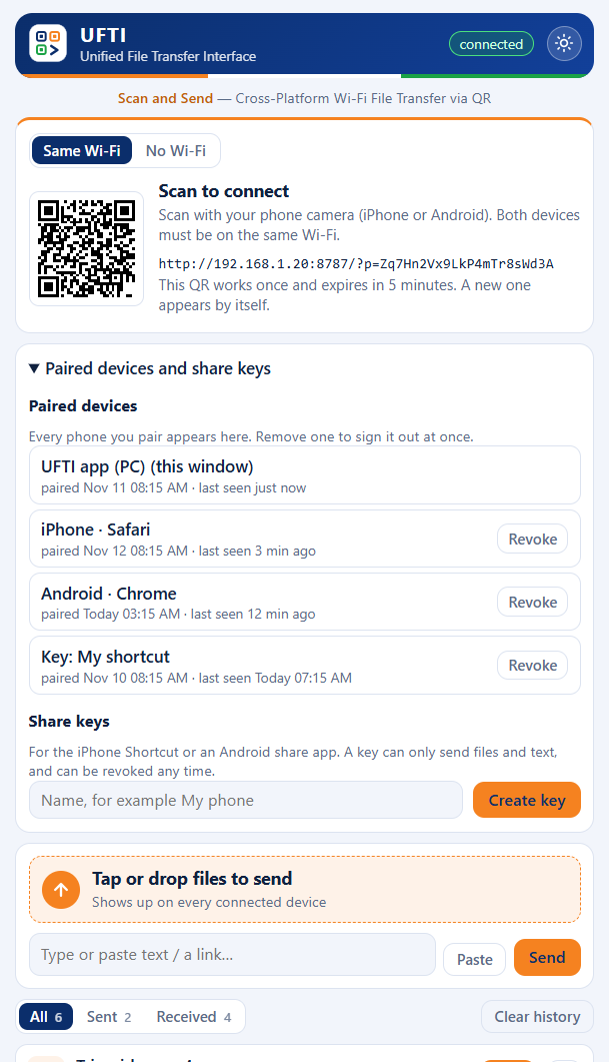
Only devices you paired can get in
Your files go directly between your devices. There is no cloud server, no sign-up and no tracking.
- Each QR code works once and expires after five minutes.
- Every paired phone is listed on the PC. Remove any of them with one tap.
- Share keys for iPhone Shortcuts and Android share apps can send files and text, and nothing else.
Traffic on a local network is not encrypted, so avoid public Wi-Fi. On a network you do not trust, use the PC hotspot mode.
Small details that make it pleasant
Both directions
PC to phone and phone to PC, with live progress bars.
Any file size
Files stream straight to disk, so a multi-gigabyte video works.
Copy without saving
Copy a received photo and paste it into a chat or a Word document.
Text and links
Send a URL or a note and copy it with one tap.
History on both sides
All, Sent and Received tabs with times. Clear them whenever you like.
Share button
Add "Send to PC" to the iPhone share sheet with a free iOS Shortcut. Android works with a share app.
iPhone and Android apps
Let the phone host UFTI, or scan another UFTI's QR code inside the app with no browser.
Light and dark
One tap on the sun or moon button, and it remembers your choice.
Lives in the tray
Close the window and UFTI keeps listening. Start it with Windows if you want.
Before you ask
What does UFTI stand for?
Unified File Transfer Interface. One interface for moving files between Windows, iPhone and Android, whichever device you start from. The tagline is "Scan and Send".
Is this the same as AirDrop?
No. AirDrop uses Bluetooth and Wi-Fi between Apple devices. UFTI needs a shared network or a hotspot and a one-time QR scan, and it works between Windows and phones. For two Apple devices, use AirDrop.
Does it need the internet?
No. Both devices only need to be on the same network. The No Wi-Fi mode creates one for you, and transfers never use mobile data.
Do I need to install anything on the phone?
No. The phone opens UFTI as a web page in its own browser. You can add it to the Home Screen for an app icon.
Does it work with Android, Mac or iPad?
Yes. There is a native Android app, and any device with a modern browser can open the pairing link, including a Mac, an iPad or another PC. The desktop app itself is for Windows 11.
Can an Android phone and an iPhone send files to each other?
Yes, with no PC involved. Open UFTI on one phone, and scan its QR code from the other phone's UFTI app or its camera. Both phone apps speak the same protocol as the Windows app.
Is it safe on public Wi-Fi?
Not recommended, because traffic on the local network is not encrypted. Pairing is one-time and you can remove any device, but on a network you do not trust, use the PC hotspot mode.
Why is there no App Store or Play Store app?
The stores need paid developer accounts, and the web page already works with nothing to install. The iPhone app installs with a free Apple ID, and the Android app is an APK you open on the phone. The repository has a step-by-step guide for each.
Windows says the app is unrecognised. Is it safe?
The installer is not code-signed yet, so SmartScreen shows a warning. Choose More info, then Run anyway. The full source code is public on GitHub if you want to check it.
Stop emailing yourself photos
UFTI is free and open source under the MIT license.